
Projects in tabs
Keep several projects open side by side. Swiftgrove remembers them for next time.
Everything Swiftgrove does, starting with first-class WSL support.
WSL
Swiftgrove runs Git inside WSL itself, where your project lives. That makes it fast, and Git works with your own WSL settings, as it does in your terminal.
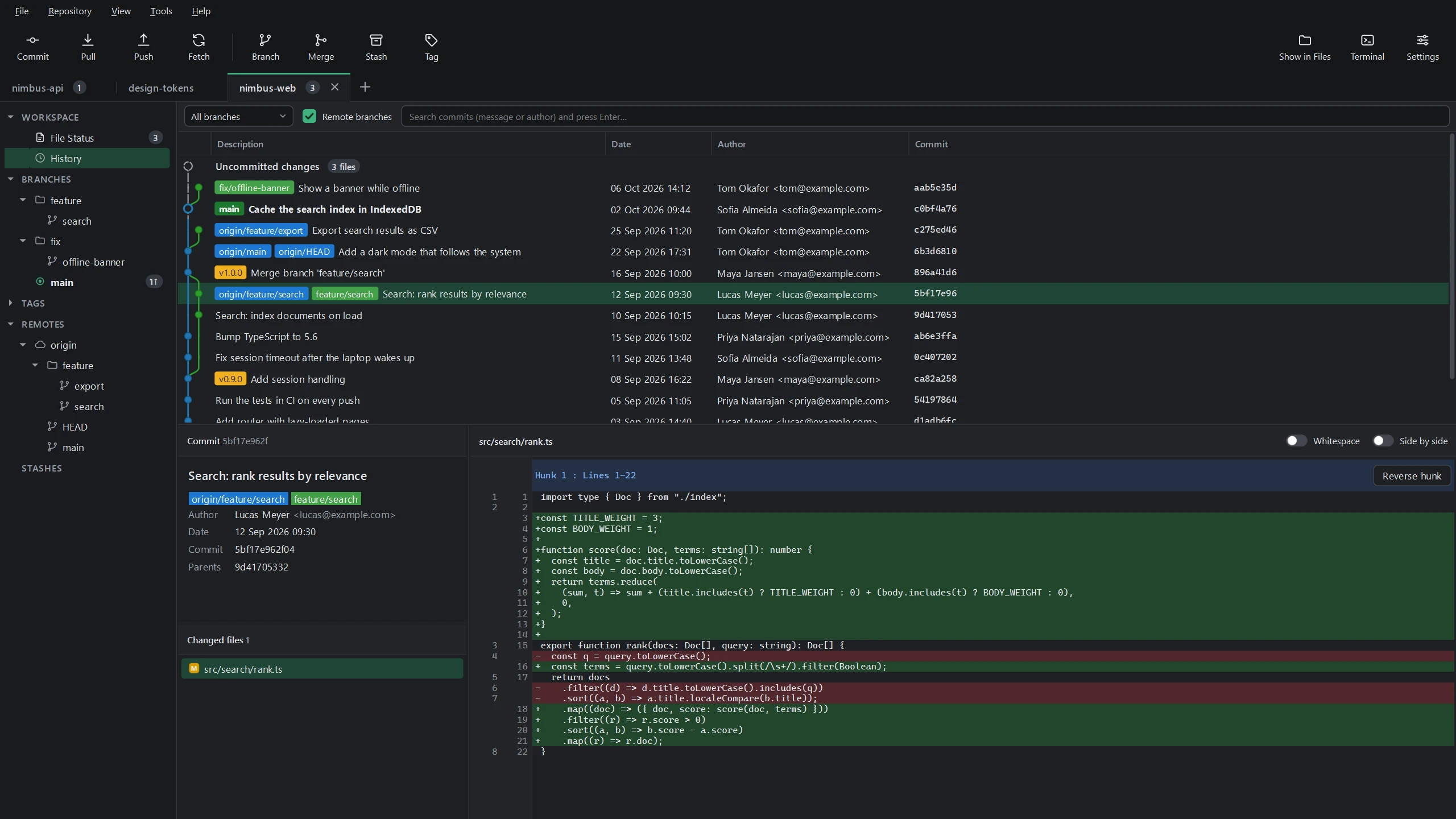
History
Click a commit to see what it changed and who made it. Search by message or by author.
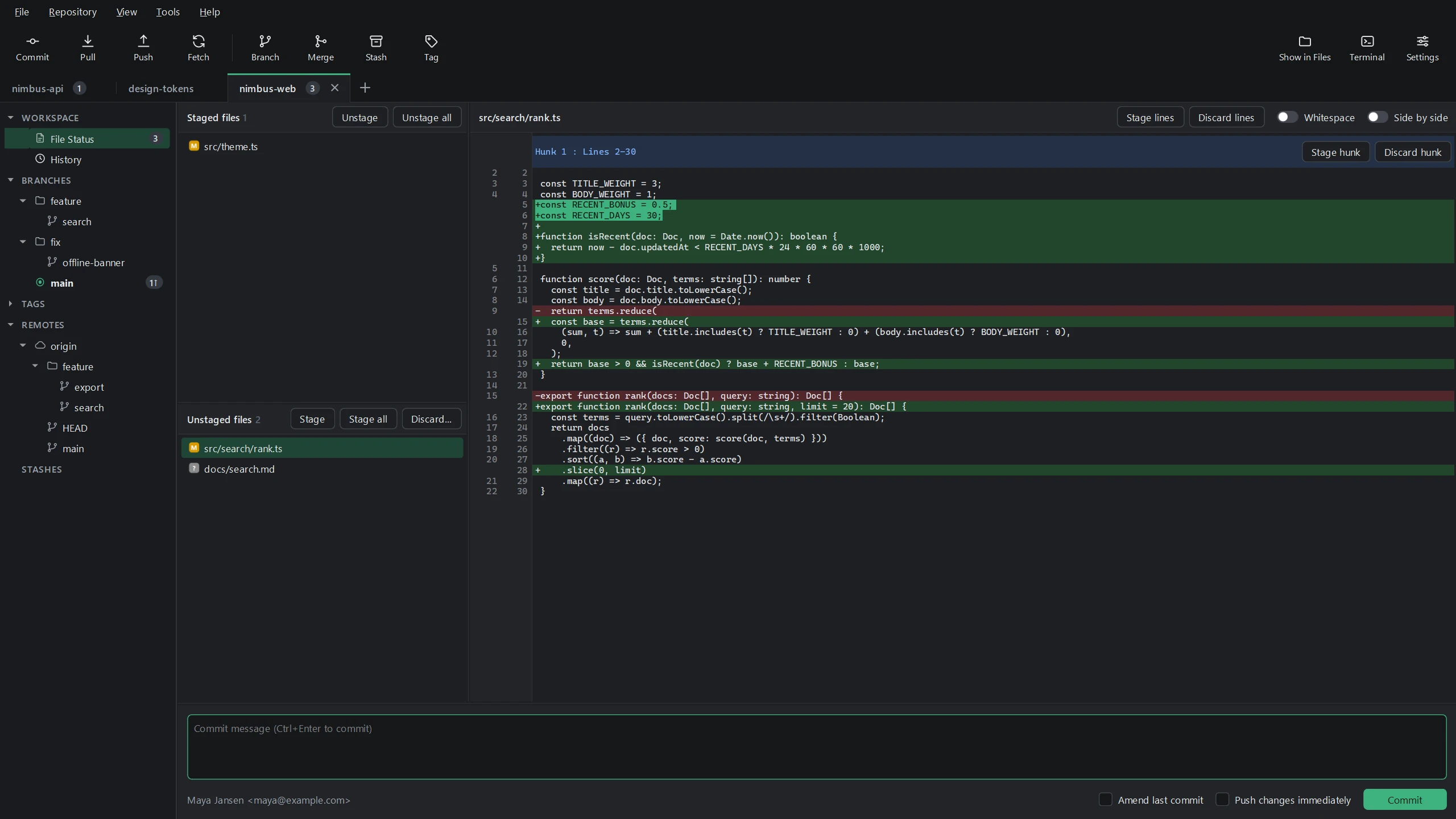
Commit
See what changed before you commit. Take whole files, single blocks or a few lines, and leave the rest for later. Changes you don't want can be discarded.
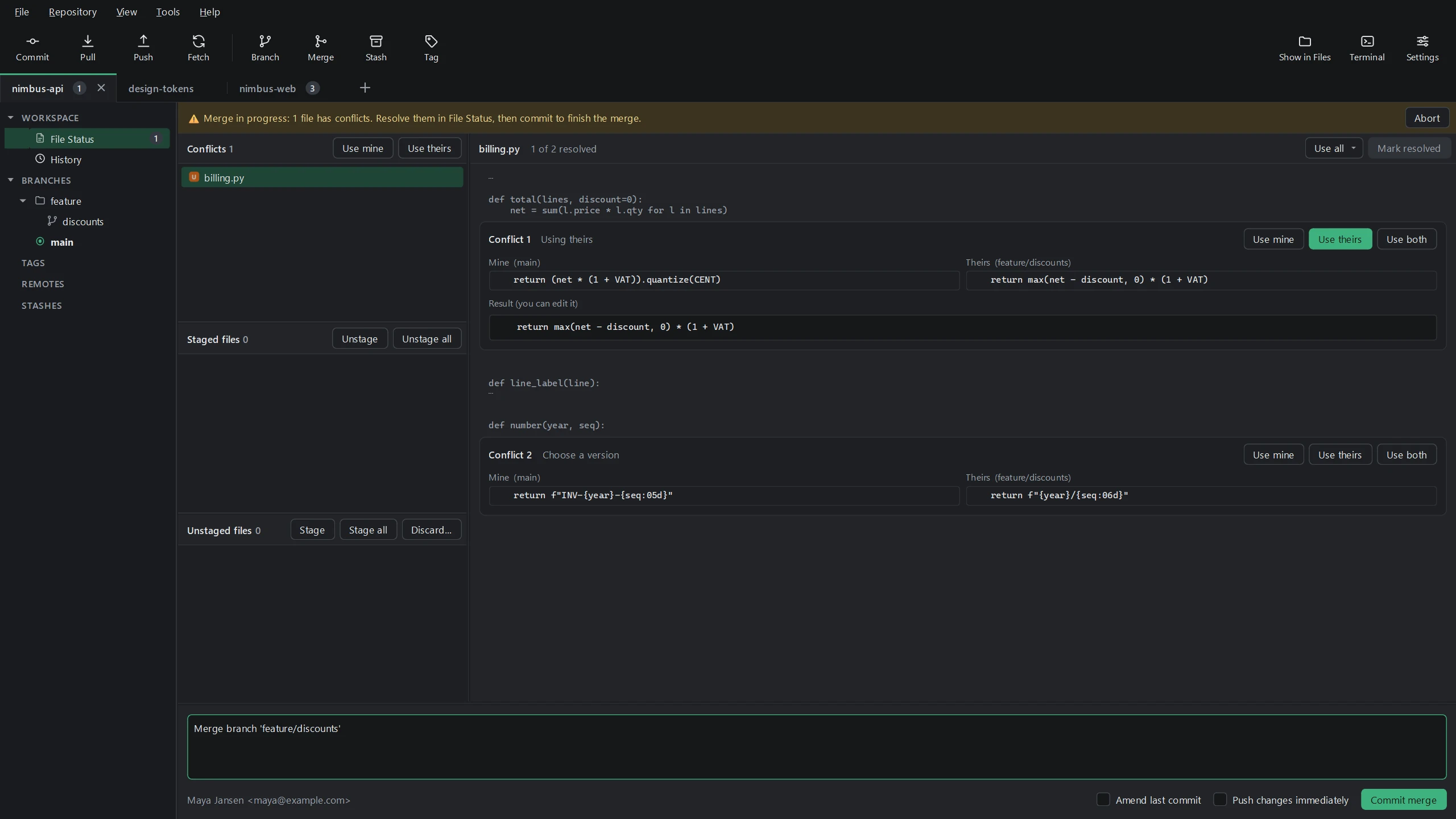
Merge conflicts
When your work and someone else's change the same lines, Swiftgrove shows both versions next to each other. Per conflict you use yours, theirs or both, and adjust the result if needed.
Reading changes
Read changes in one column, or the old and new version next to each other. Switch between the two above any change.
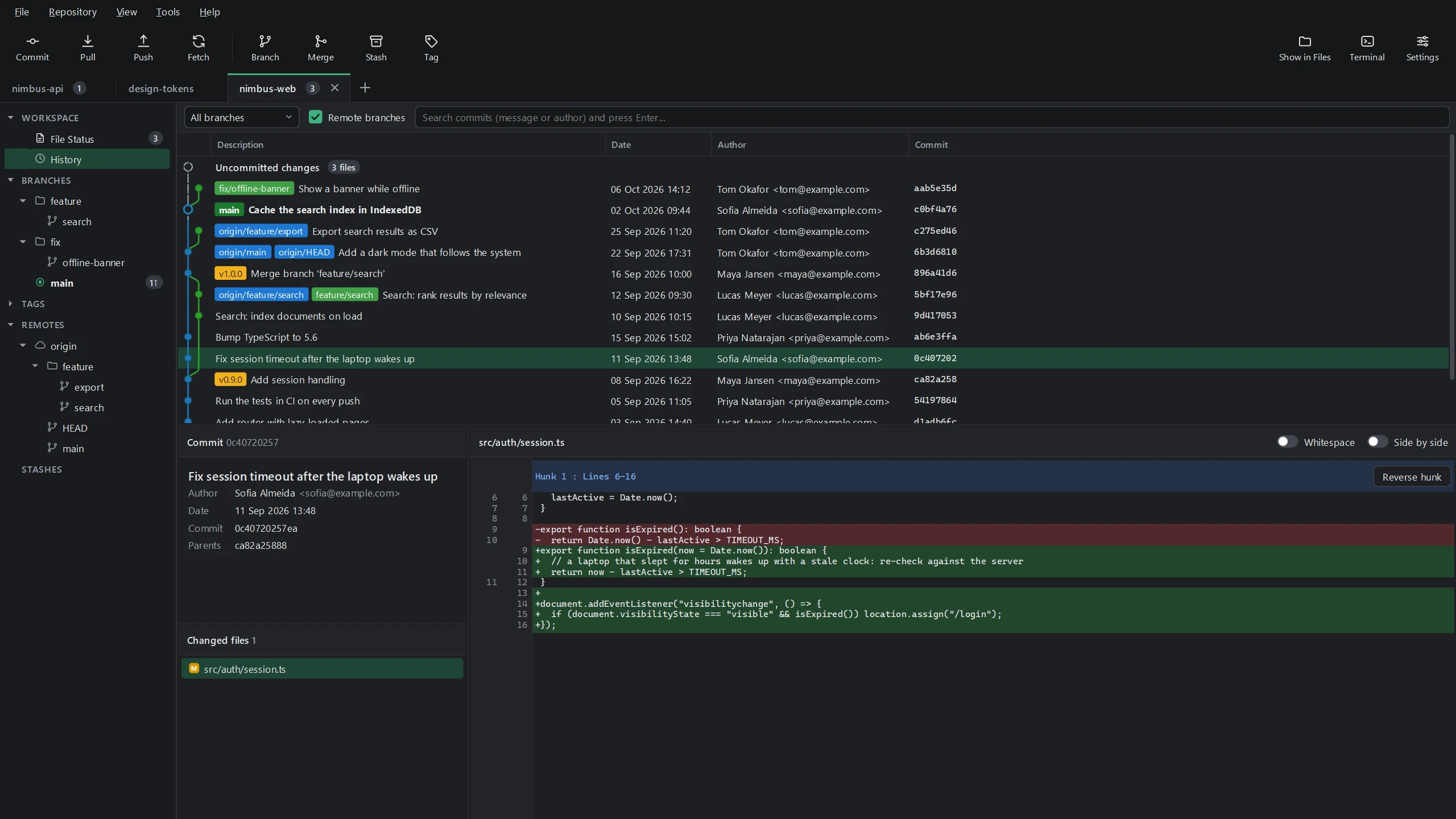
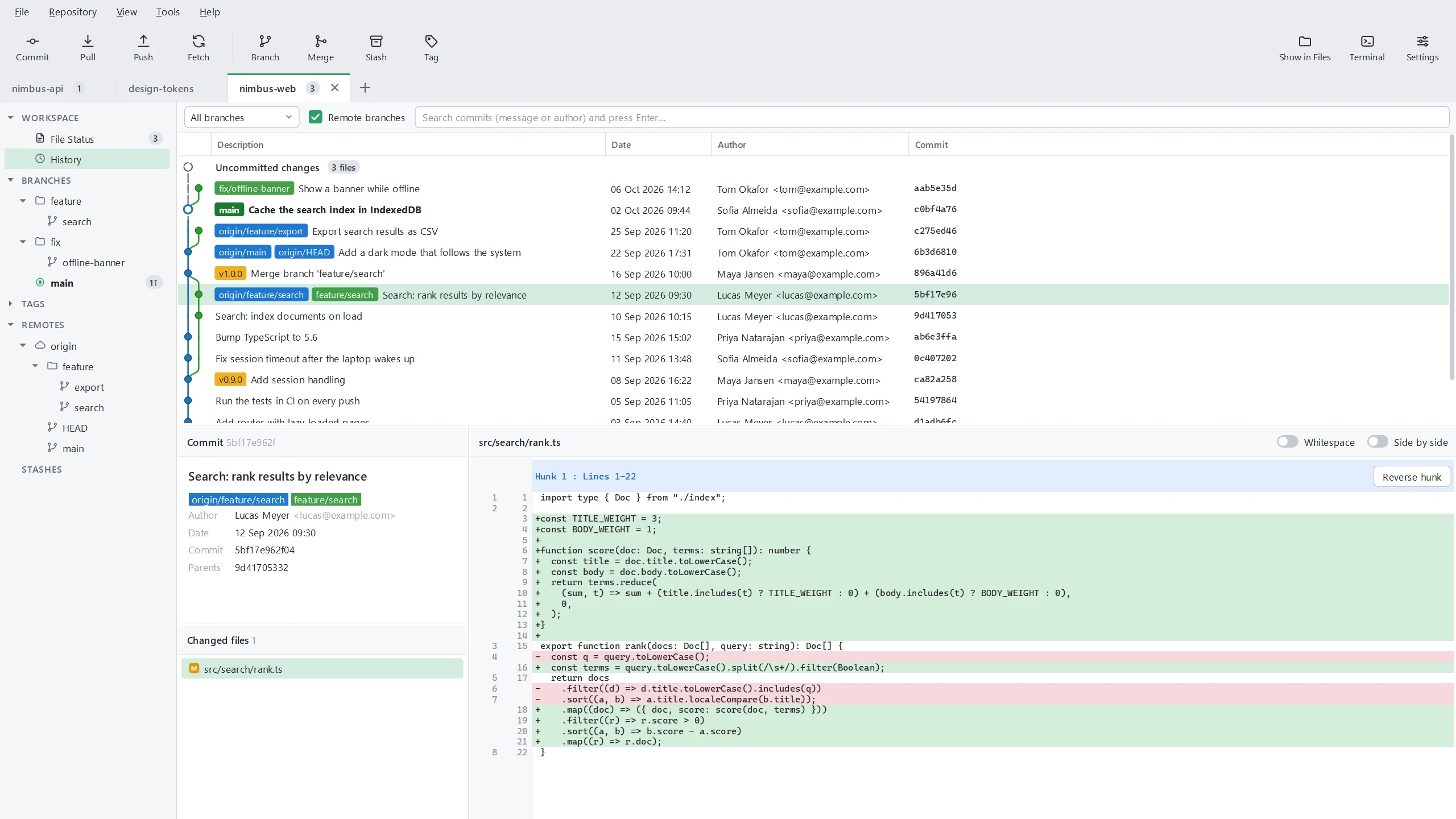
Light and dark
By default Swiftgrove follows your Windows setting; you can also choose one in Settings. Drag the slider to compare them.
More
Keep several projects open side by side. Swiftgrove remembers them for next time.
Create, switch, merge and rebase branches from the sidebar, with ahead and behind counts.
Sign in with GitHub in your browser, or use SSH keys. GitLab, Bitbucket and other servers work too.
Tidy up your branch before you share it: change the order of commits, squash them, edit their messages or drop them.
See who last changed each line of a file, and in which commit. One click takes you to that commit.
Beyond Compare, WinMerge, Visual Studio Code, Meld, KDiff3 or another program.