
Install
Get Swiftgrove from the Microsoft Store (see the download page) and start it from the Start menu.
For projects in WSL, Swiftgrove uses Git inside WSL. For projects on Windows, install Git for Windows.
Open a project
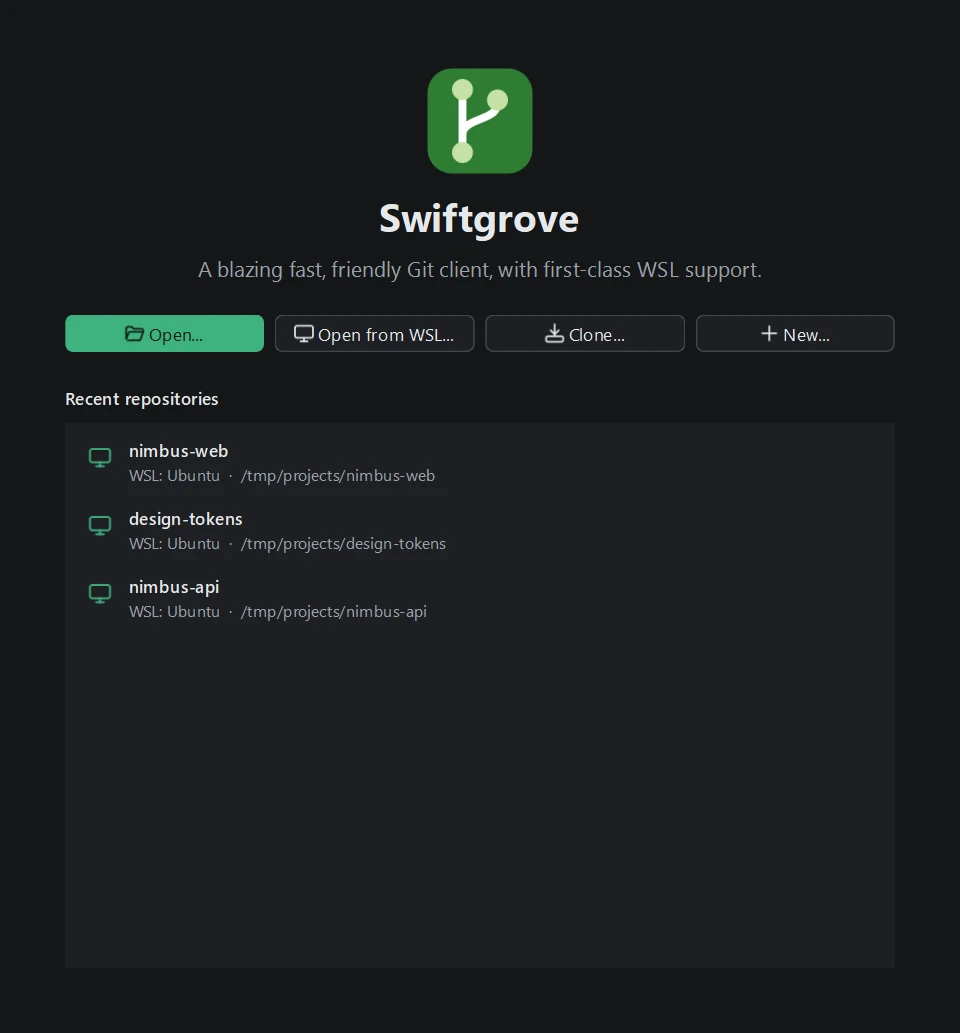
The start screen offers four ways to begin:
- Open: a project folder on Windows.
- Open from WSL: a project inside WSL.
- Clone: copy a project from GitHub, GitLab or another Git server.
- New: start a new project in a folder of your choice.
Open several projects side by side in tabs; use the + after the last tab for another one. Swiftgrove reopens your tabs the next time you start it.
Swiftgrove asks before opening a project whose own settings could make Git run programs on your computer. Only open such a project if you trust where it comes from.
Make a commit
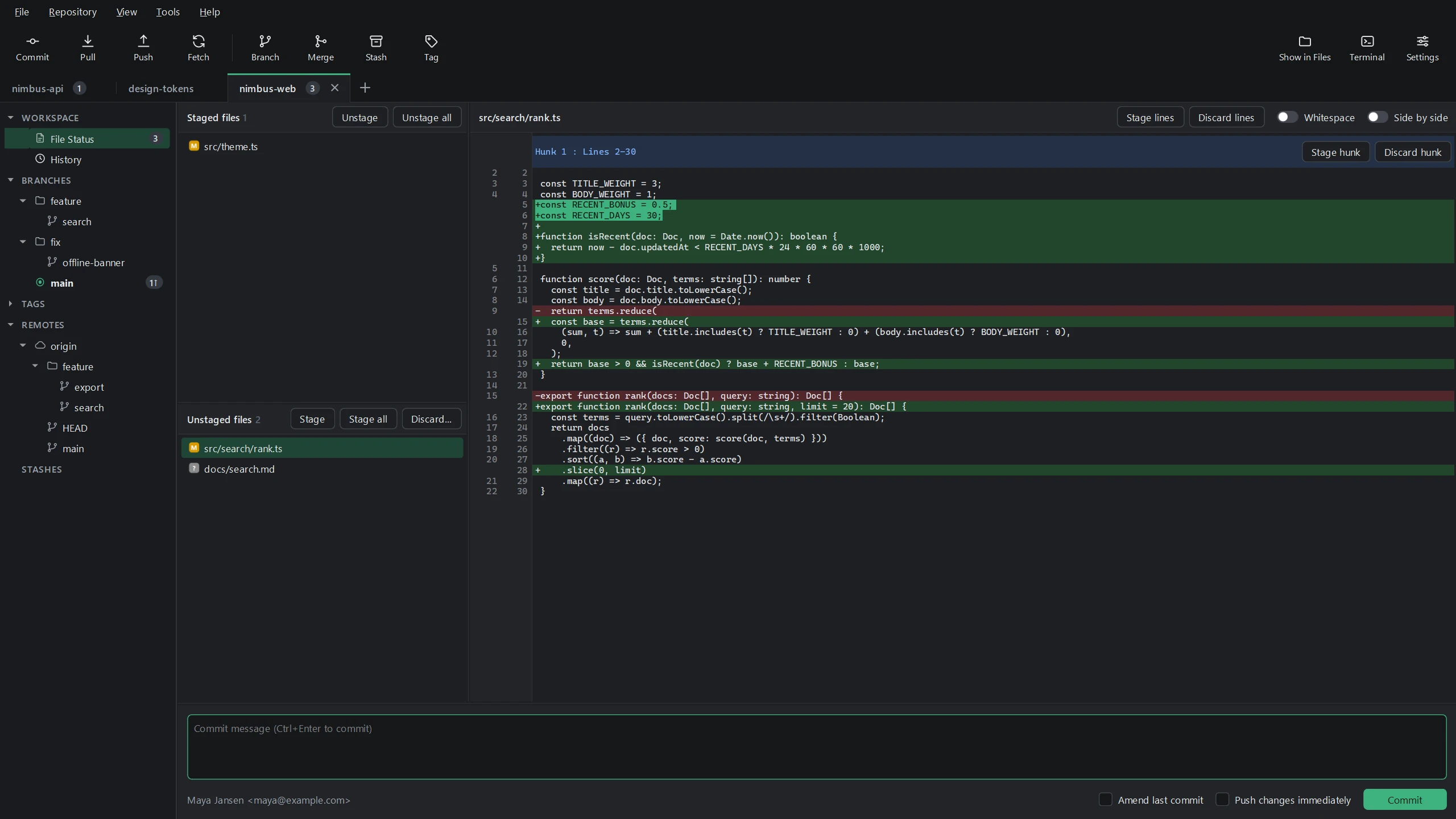
- Go to File Status in the sidebar. You'll see your changed files.
- Click a file to see what changed. Use Stage hunk for a block of changes, or select a few lines and use Stage lines. Stage takes whole files.
- Type a message and press Commit (or Ctrl+Enter). Tick Push changes immediately to share it right away, or Amend last commit to change your previous commit.
History and branches
Open History in the sidebar to see your commits with their branches and tags. Click a commit to see its details and changes; search by message or author at the top.
To see the history of one file, right-click it in File Status or in a commit's changed files and choose Show file history. History then shows only the commits that changed that file, also from before it was renamed; Show all commits goes back.
To see who last changed each line of a file, right-click it and choose Blame. Select a line to see its commit; Show in history takes you there.
Right-click a commit to check it out, create a branch or tag, merge, rebase, cherry-pick, revert, reset, or compare it with your current branch. The sidebar lists your branches, tags, remotes and stashes; right-click any of them for more.
To tidy up your branch before you share it, right-click its oldest commit to change and choose Interactive rebase from here. For each commit, choose Keep, Edit message, Squash or Drop, and use Move up and Move down to change the order. If commits were already pushed, push with Force push afterwards.
Pull and push
Use Fetch, Pull and Push in the toolbar. You'll see the progress while it runs.
Merge conflicts
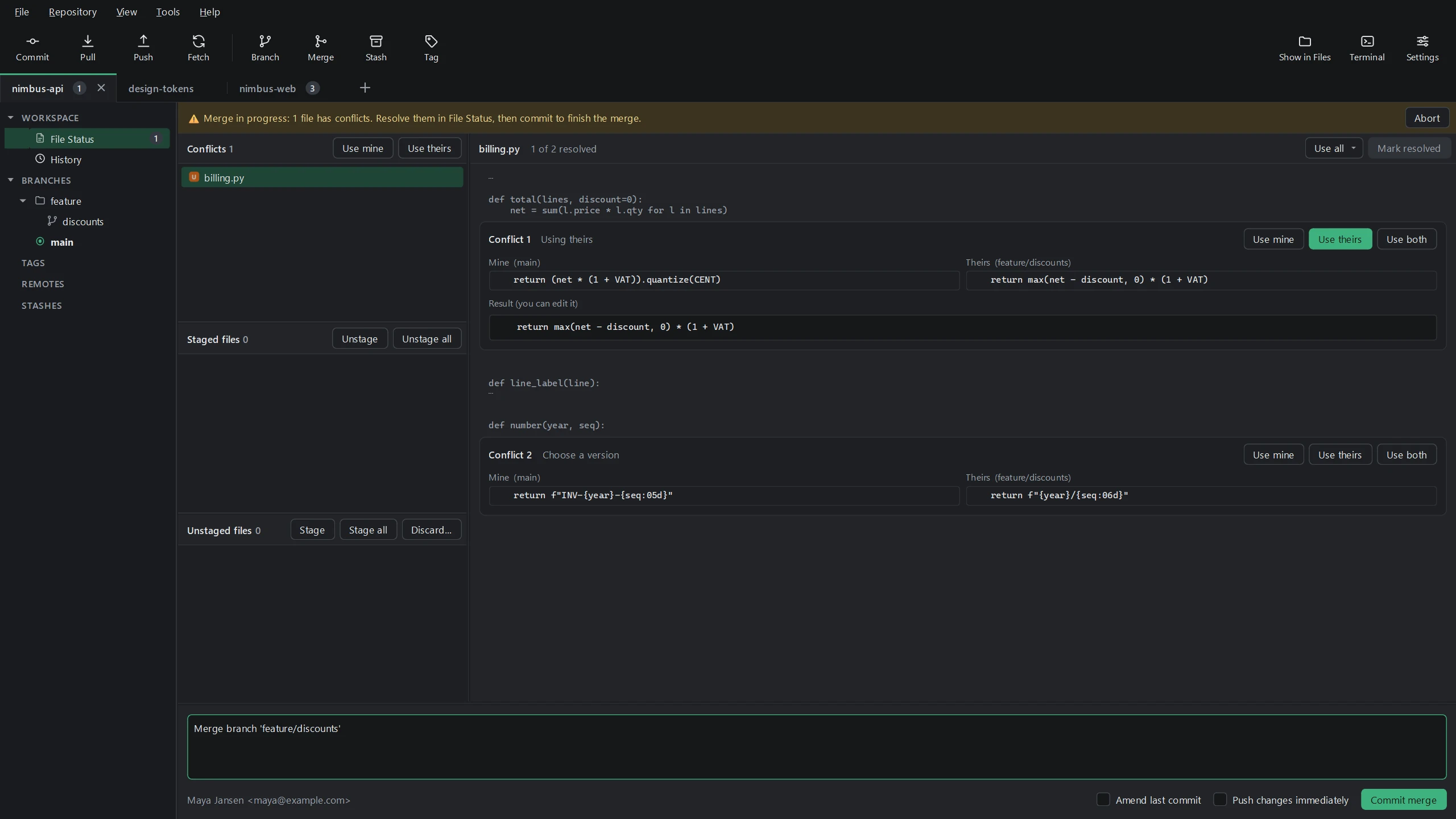
If a merge, rebase, cherry-pick or stash stops on conflicts, Swiftgrove opens File Status and lists the files under Conflicts.
- Click a file. Each conflict shows Mine and Theirs side by side.
- Choose Use mine, Use theirs or Use both, and adjust the result if needed.
- Press Mark resolved. When all files are done, commit to finish the merge, or use Continue in the banner for a rebase.
Changed your mind during a merge, rebase, cherry-pick or revert? Abort in the banner takes you back to where you started.
Accounts
Open Tools → Accounts to sign in with GitHub in your browser. Your sign-in is kept in Windows Credential Manager and used when Git asks GitHub for it.
Prefer SSH? In the same window you can create an SSH key and copy it to your Git host, for Windows and for WSL, and test the connection to GitHub, GitLab or Bitbucket.
Your own tools
In Settings, choose an external diff tool and merge tool: Beyond Compare, WinMerge, Visual Studio Code, Meld, KDiff3 or your own. Then use Open in diff tool above any change, or Open in merge tool for a conflict.
Settings and updates
In Settings (Ctrl+,) you set your name and email for commits, the theme (light, dark or following Windows) and how many commits the history shows.
The Microsoft Store keeps Swiftgrove up to date.
Your license
Public repositories on GitHub, GitLab and Bitbucket are free. For private repositories you need a license.
- After buying, copy the license key from your purchase email.
- In Swiftgrove, choose Help → License…, paste the key and press Activate.
The same window shows who the license belongs to. Use Deactivate this device to move your license to another PC. A license works on 2 devices; if an old PC is gone, free it on the devices page with your key.
Keyboard shortcuts
- Ctrl+T new tab · Ctrl+W close tab · Ctrl+O open · Ctrl+Shift+O open from WSL
- Ctrl+Shift+N clone · Ctrl+N new project
- Ctrl+1 File Status · Ctrl+2 History · F5 refresh
- Ctrl+Enter commit · Ctrl+Shift+P push · Ctrl+Shift+L pull · Ctrl+Shift+F fetch
- Ctrl+Shift+B branch · Ctrl+Shift+M merge · Ctrl+Shift+S stash
- Ctrl+Alt+T terminal · Ctrl+, settings
More questions? See the FAQ.